I apply the throwing function on player, and it works with little problem.
Since the path is parent to the character, the sphere will update the throwing direction along to the latest path position. It makes thing comes weird.
I fix the problem by temperately remove the parent relationship between the character and the path when the player release mouse button. The path will parent to the character again only if the sphere is successfully throw out.
The next step is to build the auto action script to the slime so that it can affect the surrounding object instead of waiting player to trigger it.
I build a simple demo about the function:
Slime will inhaling the surrounding object that is marked as ‘Food’
The inhaled object will be destroyed after a while
But I find a problem during the development process. The initial rotation of the slime seems not correct, therefore I add an empty game object as a reference to the slime to make the slime can work as expected.
A new function I added into the script to make the animation go smoothly is ‘auto play next clip’. As the animation will stop if it is a clamp animation which means the animation will only play once, the model will not be playing any animation before we told it to do so.
I would like to talk about the follow-up enhancement of the pervious post.
The function I made last time cannot grab the clip information from the children “ObjectPCAnim" script. It means I need to always check what clips is included inside the Mega-Fiers animator manually which is such an inconvenient thing for a programmer.
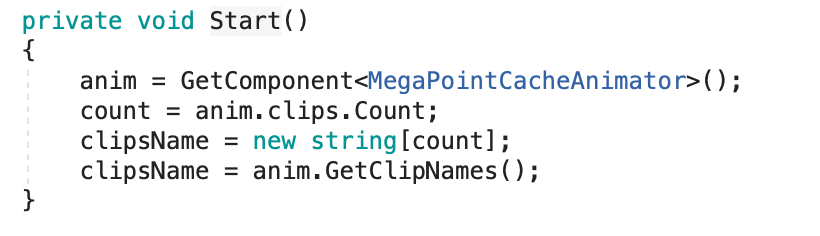
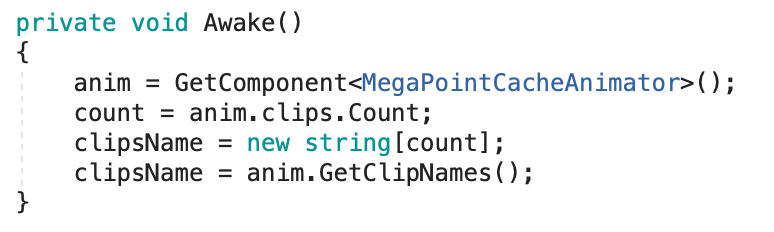
Therefore, I figure out why it happened and I make a little adjustment on the function to make sure the clip information are always grabbed before using.
beforeafter
The different between them is just placing under different function.
I am trying to add the Slime reaction to player’s action in order to create the feel of interacting with the slime.
To achieve it, I have to make sure all part of slime must run the animation at the same time.
The are 3 components inside a slime.
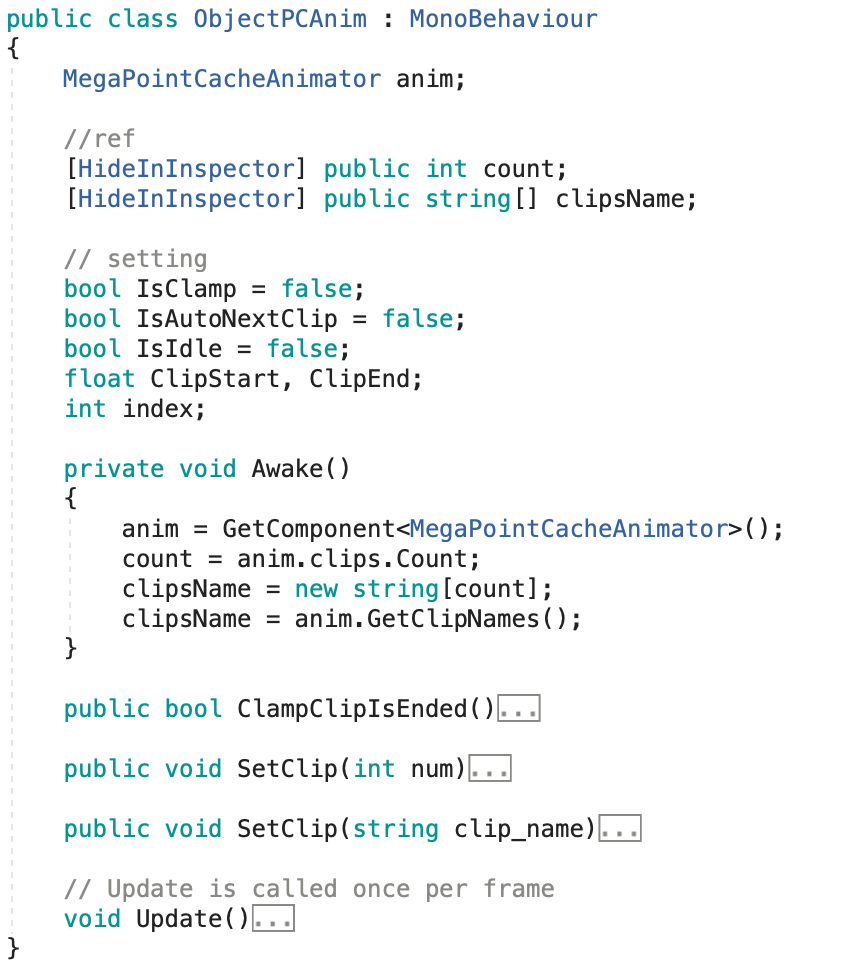
In this test, I add the following customised script called “ObjectPCAnim" to each component so that I can take out the information from Mega-Fiers script and control the current playing clip of Mega-Fiers animator.
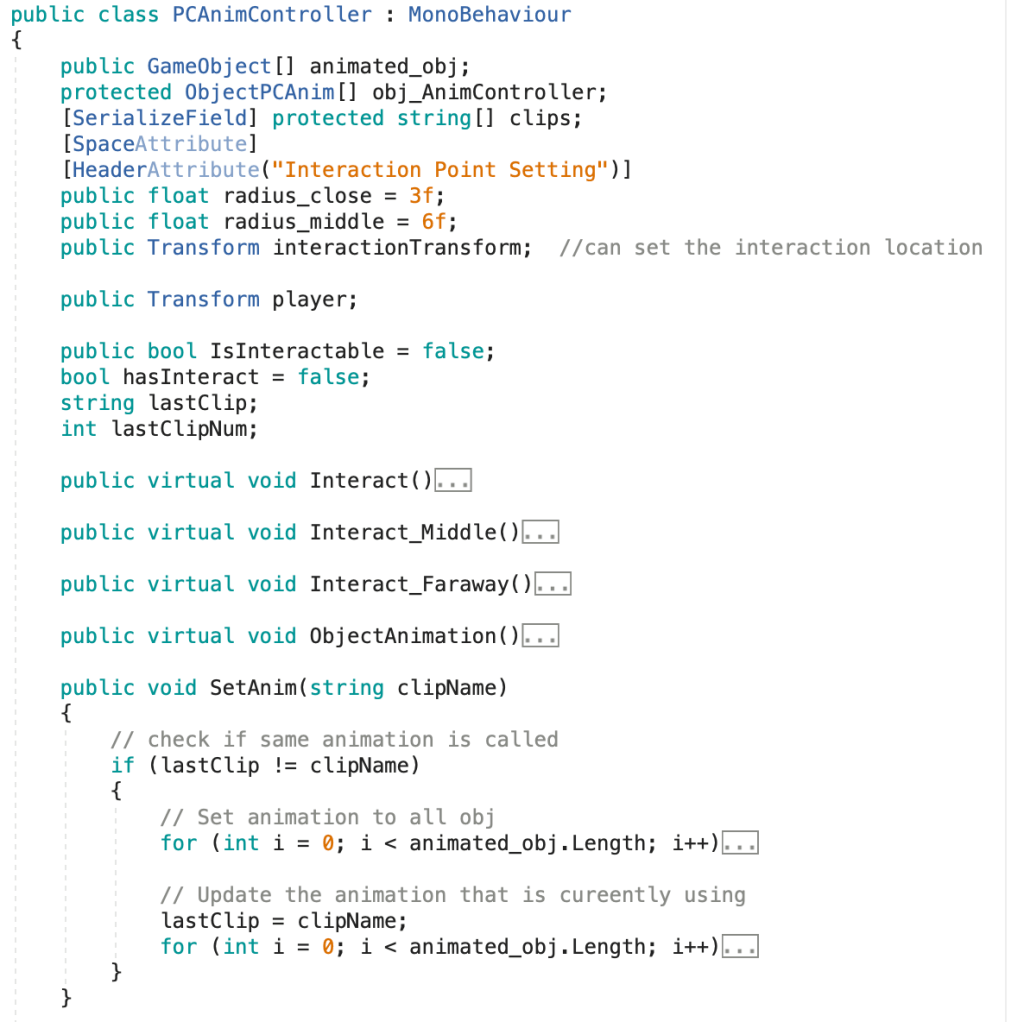
After that, I create a new class that helps me to control the above script of each component at one time.
The simple slime action controller is finished. I can apply it on the interaction with player by adding the collision detection.
And I get the following result:
Slime will open its mouth when player is around it
I want to give one more chance to camera rotation method 2 – rotation camera according to mouse position. Therefore, I tried to improve the method by adding some speed adjustment based on the current mouse position.
When mouse cursor is more near to the inlier boundary, the rotation speed will be slow down. And the rotation speed will be increased if if is more near to the outer boundary.
However, this method is still not welcomed by our testers.
Since each NPC may have more than one set of dialogue and the dialogue will be changed according to the story process, dialogue system is too complicated for current dialogue system.
I find out there is a free and open source asset called “Fungus" which help solving this problem.
To navigate the dialogue, just simply add a flow chart object under the object or add a flow chart script inside the object which I prefer the former.
add a flow chart object under the objectadd a flow chart script inside the desired object
Then, open the flowchart window and edit the dialogue. All dialogues of this flow chart will be visualised clearly which is convenient to modify the dialogue.
visualised dialogueFungus dialogue in game
It is much more convenient than the old dialogue system. The old dialogue system can almost be replaced by this asset. I just want to express my thanks to Fungus developers!
From the tutorial, the character can only be controlled by mouse for movement, interact and camera control. I modify the code to enable keyboard to control the character. However, user can only choose one of them on setting page.
There is some difficulties I faced on adding keyboard control:
1. Character moving direction will not update with camera facing
Character move according to its direction, not related to camera
Player input “W"/"Up arrow" after camera rotated
Solution:
Multiple the rotation of y-axis on character movement
Player input “W"/"Up arrow" after camera rotated
2. Player cannot interact with the object
Solution:
3. Character no response after interact with the object
Actually, it is bring from the solution of difficulty 2.
Solution:
Don’t call the playerController SetFocus function.
4. Player hard to select the object that they want to interact with
Solution:
Use a list to store the triggered object > Add object into the list if player is around the interactable object/Remove object from the list if player leave the interactable object > Compare the distance between the player and the triggered object > Highlight the object that near the player
Other problems:
1. Character model go away from the parent object when animated
character go away from the cylinder
Solution:
Export animation from Mixamo with “In-place" is ticked.





 Afterworld